How to Upload Large Files to ChatGPT with FileUploadGPT
FileUploadGPT makes it easy to upload large files to ChatGPT. Follow these simple steps to get started in under 60 seconds.
Install the Extension
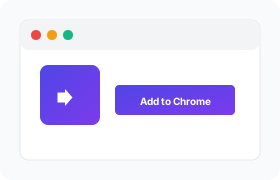
Click the button below to open the Chrome Web Store. Then click "Add to Chrome" to install FileUploadGPT. The installation takes just a few seconds and requires no account or configuration.
Add to Chrome — FreeAlso works on Edge, Brave, Opera, and other Chromium-based browsers.
Open ChatGPT
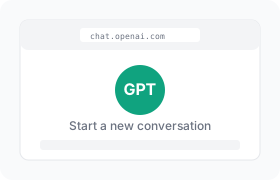
Navigate to chat.openai.com in your browser. You can start a new conversation or open an existing one. FileUploadGPT works with both ChatGPT Free and ChatGPT Plus accounts.
Make sure you're logged into your OpenAI account.
Click the FileUploadGPT Icon
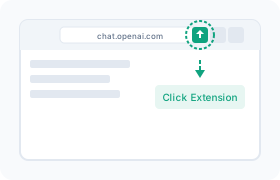
Once ChatGPT loads, you'll see the FileUploadGPT icon in your browser's extension toolbar (top-right corner). Click it to open the file upload interface.
Select Your File
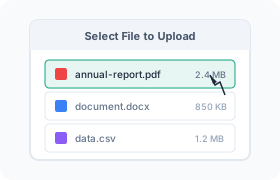
A file browser will open. Select any file from your computer — PDFs, Word documents, text files, code files, CSVs, and more are all supported. There's no file size limit with FileUploadGPT.
Supported file types: PDF, DOCX, TXT, MD, HTML, CSV, JSON, JS, PY, and more.
Start Chatting with Your Content
Your file content is now available in ChatGPT. You can ask questions about it, request summaries, get analysis, or use it for any task you need. ChatGPT has full access to your document's content.
Example prompts to try:
- "Summarize this document in 5 bullet points"
- "Find any errors in this code"
- "What are the key insights from this data?"
- "Explain the main arguments in this paper"
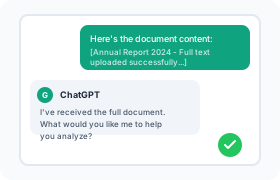
Watch It In Action
See how easy it is to upload large files to ChatGPT with FileUploadGPT.
Video tutorial coming soon
In the meantime, follow the steps above!
Tips for Best Results
Use Text-Based Files
FileUploadGPT works best with text-based files like PDFs, documents, and code. Images and scanned documents may not extract text properly.
Be Specific with Prompts
After uploading, give ChatGPT specific instructions. Instead of "analyze this," try "summarize the key findings in section 3."
Reference Specific Parts
You can ask ChatGPT about specific sections, pages, or parts of your document. It has access to the entire content.
Troubleshooting
Having issues? Here are solutions to common problems.
The extension icon isn't appearing
Make sure you're on the ChatGPT website (chat.openai.com). The extension only activates on ChatGPT. You may also need to click the puzzle piece icon in Chrome and pin FileUploadGPT to your toolbar.
My file isn't uploading
Try refreshing the ChatGPT page and attempting the upload again. Make sure your file is a supported format (PDF, DOCX, TXT, MD, HTML, CSV, JSON, or code files).
The content looks garbled or incorrect
This can happen with scanned PDFs or image-based documents. FileUploadGPT works best with text-based PDFs. Try using a different version of your document if available.
ChatGPT says it doesn't see my file
After uploading, you may need to explicitly tell ChatGPT to work with the uploaded content. Try prompting: "Based on the document I just uploaded, please..."
Ready to Get Started?
Install FileUploadGPT now and upload your first large file to ChatGPT in under 60 seconds.
Free forever. No account required.